> For the complete documentation index, see [llms.txt](https://helpdesk.ldtsoft.work/ldt-digital-downloads/llms.txt). Markdown versions of documentation pages are available by appending `.md` to page URLs; this page is available as [Markdown](https://helpdesk.ldtsoft.work/ldt-digital-downloads/navigation/customize-download-portal-page-url.md).

# Customize the download portal page URL

Change the path of the customer download page from the app's Download portal settings and your Shopify app proxy.

Change the path of the customer download page — from the default to something short such as `/apps/downloads`.

### 1. Open the portal settings

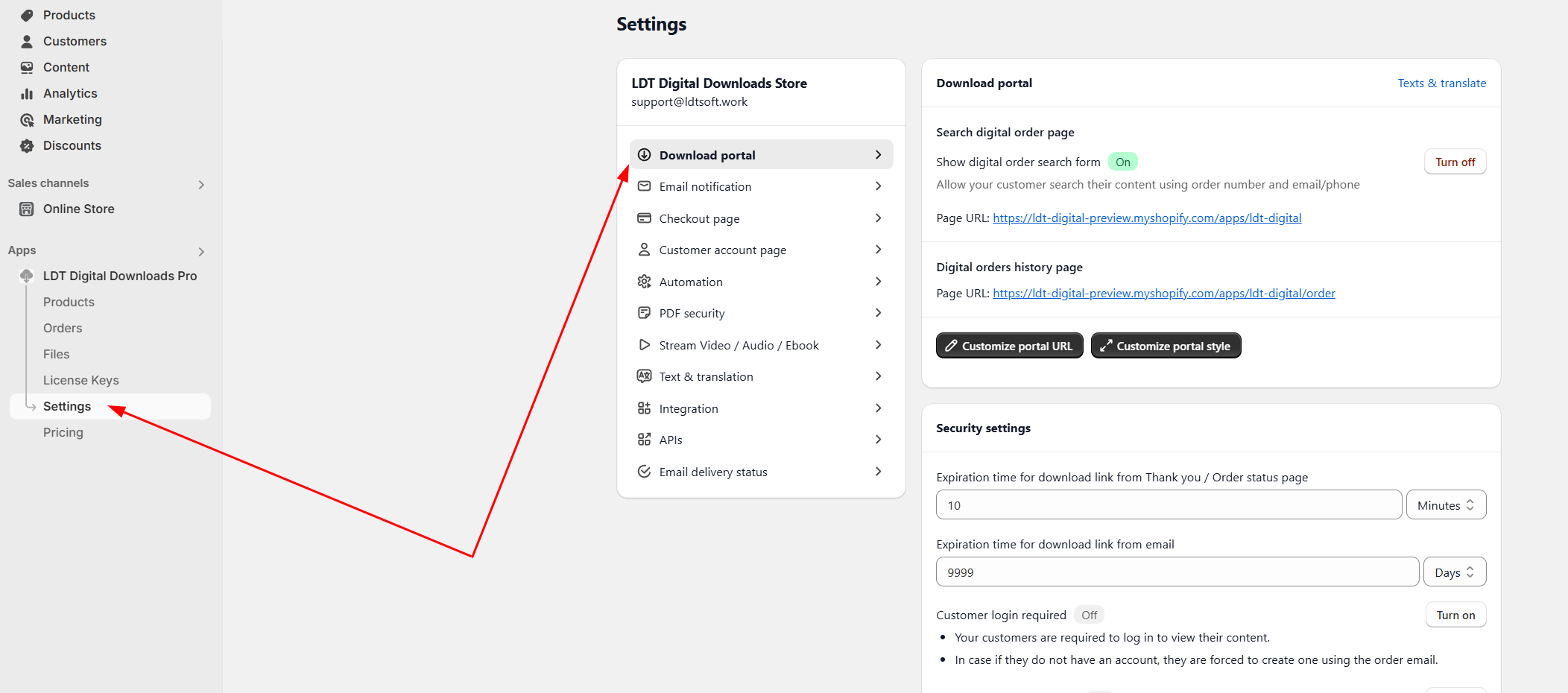
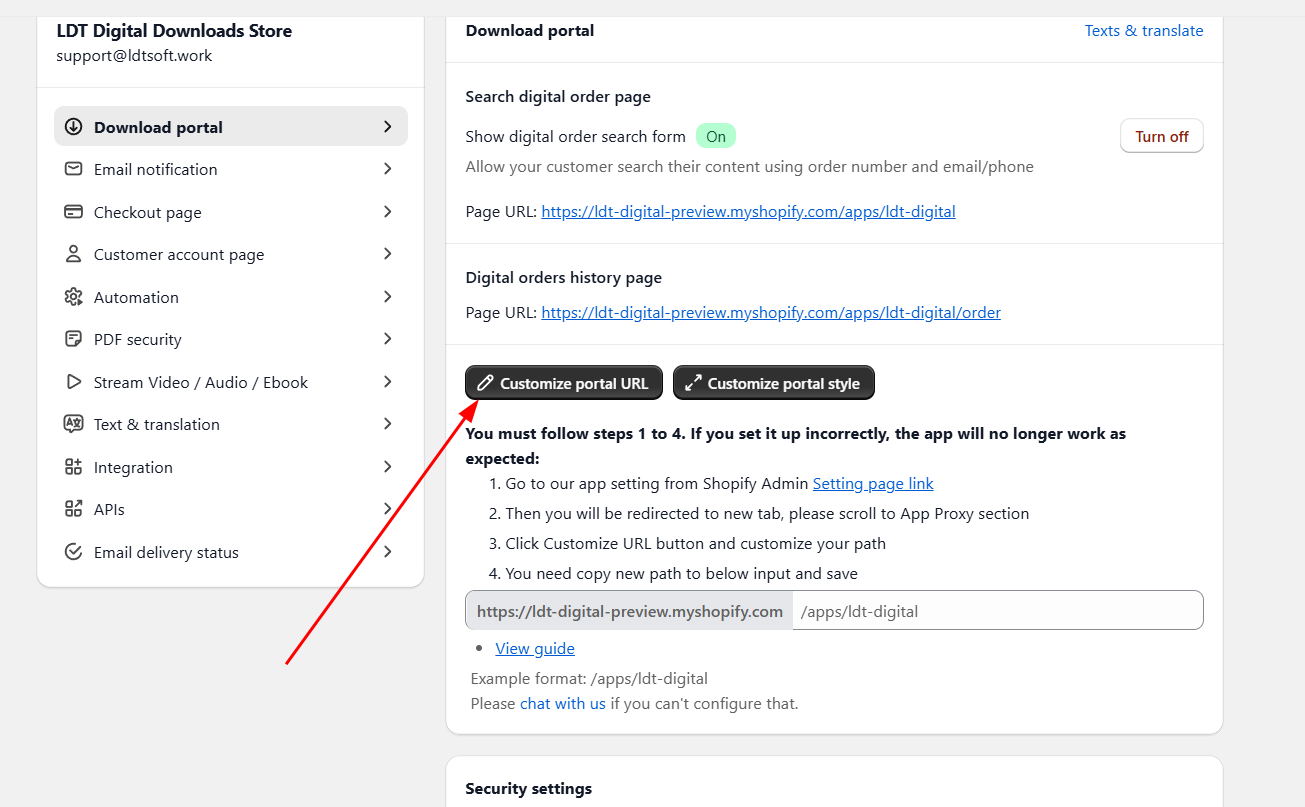
Go to **LDT Digital Downloads → Settings → Download portal** and click **Customize portal URL**.

<figure><img src="https://1863660695-files.gitbook.io/~/files/v0/b/gitbook-x-prod.appspot.com/o/spaces%2F6iG7j4lDhziM0FqdCCU8%2Fuploads%2FYOUwQxlfaQXYNekiYzQN%2Fimage.png?alt=media&amp;token=06a88021-dc3f-4b68-baaf-cb71f2902a98" alt="Download portal settings page with the portal page URLs"><figcaption></figcaption></figure>

<figure><img src="https://1863660695-files.gitbook.io/~/files/v0/b/gitbook-x-prod.appspot.com/o/spaces%2F6iG7j4lDhziM0FqdCCU8%2Fuploads%2FkIdTawOJtkRZZnGEsD0E%2Fimage.png?alt=media&amp;token=b70716a6-c954-4596-8c52-f833103edfa9" alt="Download portal settings with the Customize portal URL button"><figcaption><p>Customize portal URL</p></figcaption></figure>

### 2. Open the app settings in Shopify admin

Click **Setting page link**: Shopify admin opens on this app's settings page.

<figure><img src="https://1863660695-files.gitbook.io/~/files/v0/b/gitbook-x-prod.appspot.com/o/spaces%2F6iG7j4lDhziM0FqdCCU8%2Fuploads%2FMYs3MdevdRCvxD3fxl5s%2Fimage.png?alt=media&amp;token=f562e4e4-e175-46f3-8a26-f24f06452a18" alt="Customize portal URL panel with the Setting page link button"><figcaption></figcaption></figure>

### 3. Change the App proxy path

Scroll to the **App proxy** section, click **Customize URL**, enter the subpath you want (for example `downloads`, which makes the page `/apps/downloads`) and save.

<figure><img src="https://1863660695-files.gitbook.io/~/files/v0/b/gitbook-x-prod.appspot.com/o/spaces%2F6iG7j4lDhziM0FqdCCU8%2Fuploads%2FgmRIOh0rAuBaPvfqBQdz%2Fimage.png?alt=media&amp;token=3bf2e684-fedb-47e6-80d9-d1213b07e5d7" alt="Shopify admin app settings with the App proxy section"><figcaption></figcaption></figure>

<figure><img src="https://1863660695-files.gitbook.io/~/files/v0/b/gitbook-x-prod.appspot.com/o/spaces%2F6iG7j4lDhziM0FqdCCU8%2Fuploads%2FPhZeYpXnNjGOSRNRYs2e%2Fimage.png?alt=media&amp;token=0c1886d9-31b5-4d31-8edb-6a7e7ac851e0" alt="App proxy section with the Customize URL button"><figcaption><p>App proxy → Customize URL</p></figcaption></figure>

### 4. Save the new path in the app

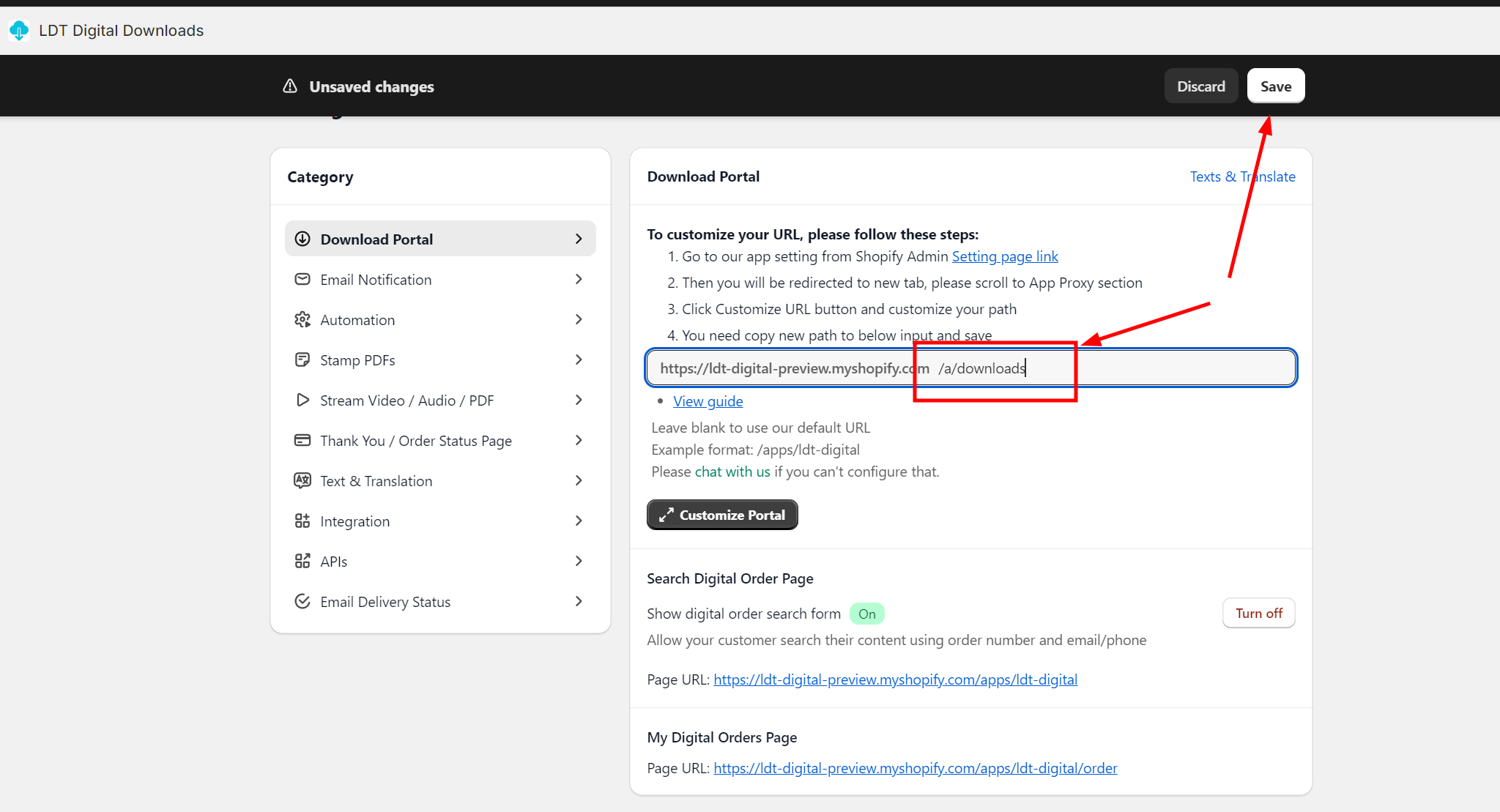
Back in the app's panel paste the same path — the expected format is `/apps/ldt-digital` — tick **I have completed the setup steps 1 - 3** and click **Save** in the app bar (the button appears once something changed).

<figure><img src="https://1863660695-files.gitbook.io/~/files/v0/b/gitbook-x-prod.appspot.com/o/spaces%2F6iG7j4lDhziM0FqdCCU8%2Fuploads%2Fpzx4BD3lAmFgOkvLupta%2Fimage.png?alt=media&amp;token=3085d854-31d7-412f-b866-f7dcab028140" alt="Customize portal URL panel with the path field and the confirmation switch"><figcaption><p>Paste the path and confirm you finished the setup</p></figcaption></figure>

### Result

The three URLs in **Settings → Download portal** (search page, order history and library) now use your new path — use it in your store menu and in any link you share with customers.

### Video

Video walkthrough: <https://youtu.be/OnU6AEiIObg>