> For the complete documentation index, see [llms.txt](https://helpdesk.ldtsoft.work/ldt-digital-downloads/llms.txt). Markdown versions of documentation pages are available by appending `.md` to page URLs; this page is available as [Markdown](https://helpdesk.ldtsoft.work/ldt-digital-downloads/navigation/how-to-add-my-downloadable-orders-page-to-your-customer-account-page.md).

# How to add the downloads page to the customer account

Add the My Downloadable Orders page to the new Shopify customer account menu so customers find their files.

## 1. Switch your Legacy Customer Account to New Customer Account version

* From your Shopify admin -> Setting

<figure><img src="https://1863660695-files.gitbook.io/~/files/v0/b/gitbook-x-prod.appspot.com/o/spaces%2F6iG7j4lDhziM0FqdCCU8%2Fuploads%2Fgit-blob-521a1e1b572b1b857de6f25eab1cba0c4c0510d4%2Fadmin-open-settings.png?alt=media" alt="Shopify admin sidebar with the Settings item at the bottom"><figcaption></figcaption></figure>

* Select Customer Account tab -> Switch to New Customer Account version

<figure><img src="https://1863660695-files.gitbook.io/~/files/v0/b/gitbook-x-prod.appspot.com/o/spaces%2F6iG7j4lDhziM0FqdCCU8%2Fuploads%2FOuyqldnSxP7chAKc4283%2Fimage.png?alt=media&amp;token=4cffa4d2-5c08-47f7-a4e9-975204a09f3d" alt="Customer accounts settings with the switch to the new customer accounts version"><figcaption></figcaption></figure>

## 2. Add My Downloadable page to Customer Account page menu

### Find Account Page main menu to add new item

<figure><img src="https://1863660695-files.gitbook.io/~/files/v0/b/gitbook-x-prod.appspot.com/o/spaces%2F6iG7j4lDhziM0FqdCCU8%2Fuploads%2Fgit-blob-72430efdf1480faae8541b2a47741915e39be852%2Fadmin-menus-customer-account.png?alt=media" alt="Menus in the sidebar with the Customer account main menu row"><figcaption><p>Your shopify admin -> Content -> Menu -> Select <strong>Customer account main menu</strong></p></figcaption></figure>

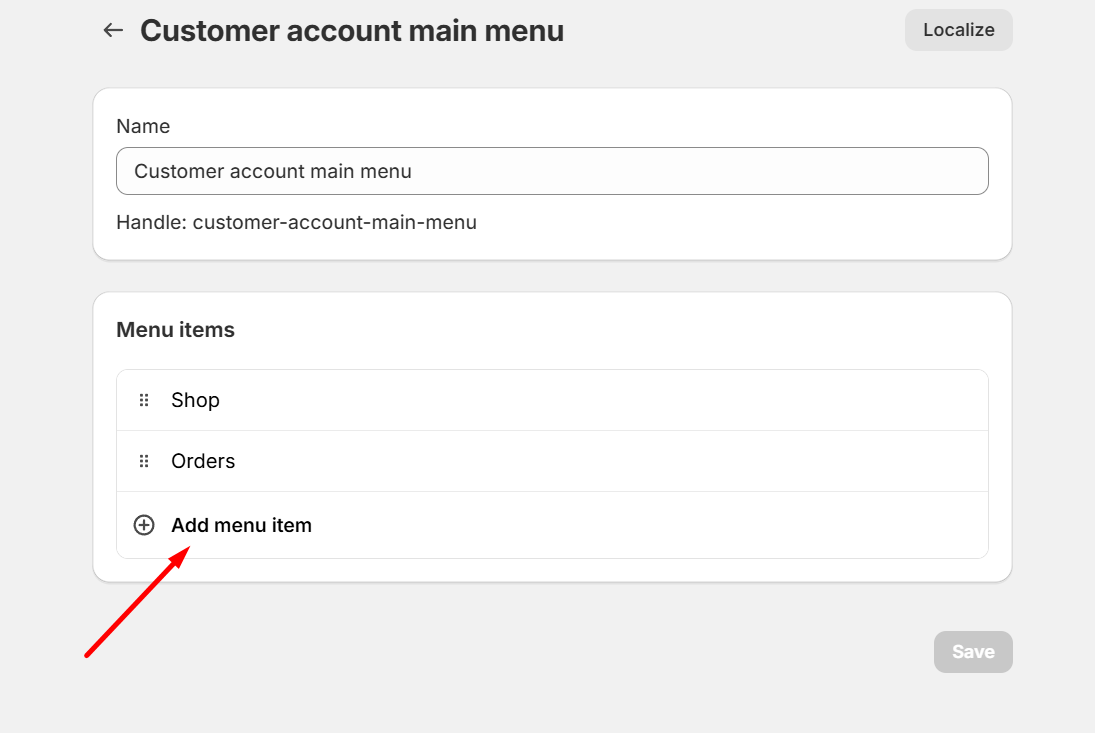
<figure><img src="https://1863660695-files.gitbook.io/~/files/v0/b/gitbook-x-prod.appspot.com/o/spaces%2F6iG7j4lDhziM0FqdCCU8%2Fuploads%2Fgit-blob-0e84f7c2197c368e7a12683617feedc2a1d52626%2Fadmin-menu-editor-add-item.png?alt=media" alt="Customer account main menu editor with the Add menu item button"><figcaption><p>Click <strong>Add menu item</strong></p></figcaption></figure>

### Fill the Page path

* Option 1: Old page version
* Find the current page URL \*

  <figure><img src="https://1863660695-files.gitbook.io/~/files/v0/b/gitbook-x-prod.appspot.com/o/spaces%2F6iG7j4lDhziM0FqdCCU8%2Fuploads%2F54ntuzH6JxYantlAuNwz%2Fimage.png?alt=media&amp;token=2d13ea82-e414-46cf-b14a-4e048b38298f" alt="Customer account page URL to copy into the menu item"><figcaption></figcaption></figure>
* Fill URL to menu \*

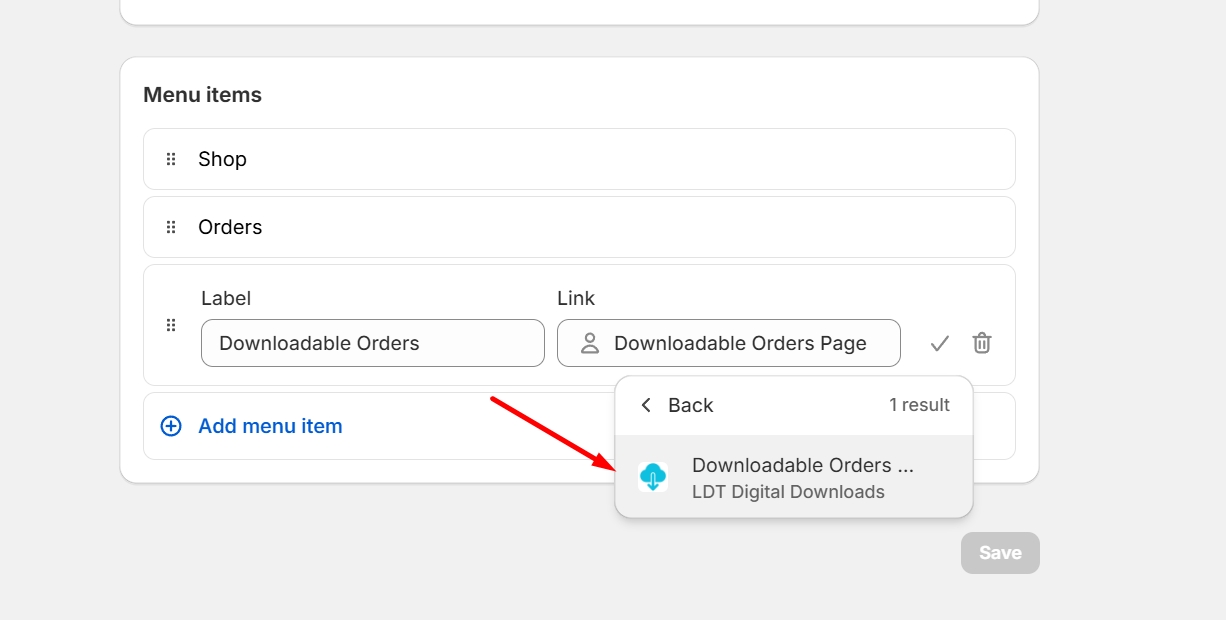
  <figure><img src="https://1863660695-files.gitbook.io/~/files/v0/b/gitbook-x-prod.appspot.com/o/spaces%2F6iG7j4lDhziM0FqdCCU8%2Fuploads%2FYcwareawU9Qxgp96OLpG%2Fimage.png?alt=media&amp;token=2cd19039-75de-45b7-ba40-c1e0aab73d1d" alt="Menu item form with the page path filled in"><figcaption><p>Fill the menu information</p></figcaption></figure>
* Option 2: New page version \*

  <figure><img src="https://1863660695-files.gitbook.io/~/files/v0/b/gitbook-x-prod.appspot.com/o/spaces%2F6iG7j4lDhziM0FqdCCU8%2Fuploads%2Fj75ARMDMJ231NDZ75u2e%2Fimage.png?alt=media&amp;token=efb6c5fc-92d2-46da-8896-204386597fe2" alt="New customer account page URL to use in the menu item"><figcaption></figcaption></figure>

  <figure><img src="https://1863660695-files.gitbook.io/~/files/v0/b/gitbook-x-prod.appspot.com/o/spaces%2F6iG7j4lDhziM0FqdCCU8%2Fuploads%2FQEFnyGN8aIUiwPsX4bWC%2Fimage.png?alt=media&amp;token=561ff697-6fe9-44ad-a013-5c37b47f1085" alt="Customer account menu item with the new page path filled in"><figcaption></figcaption></figure>

### Save and check the changes
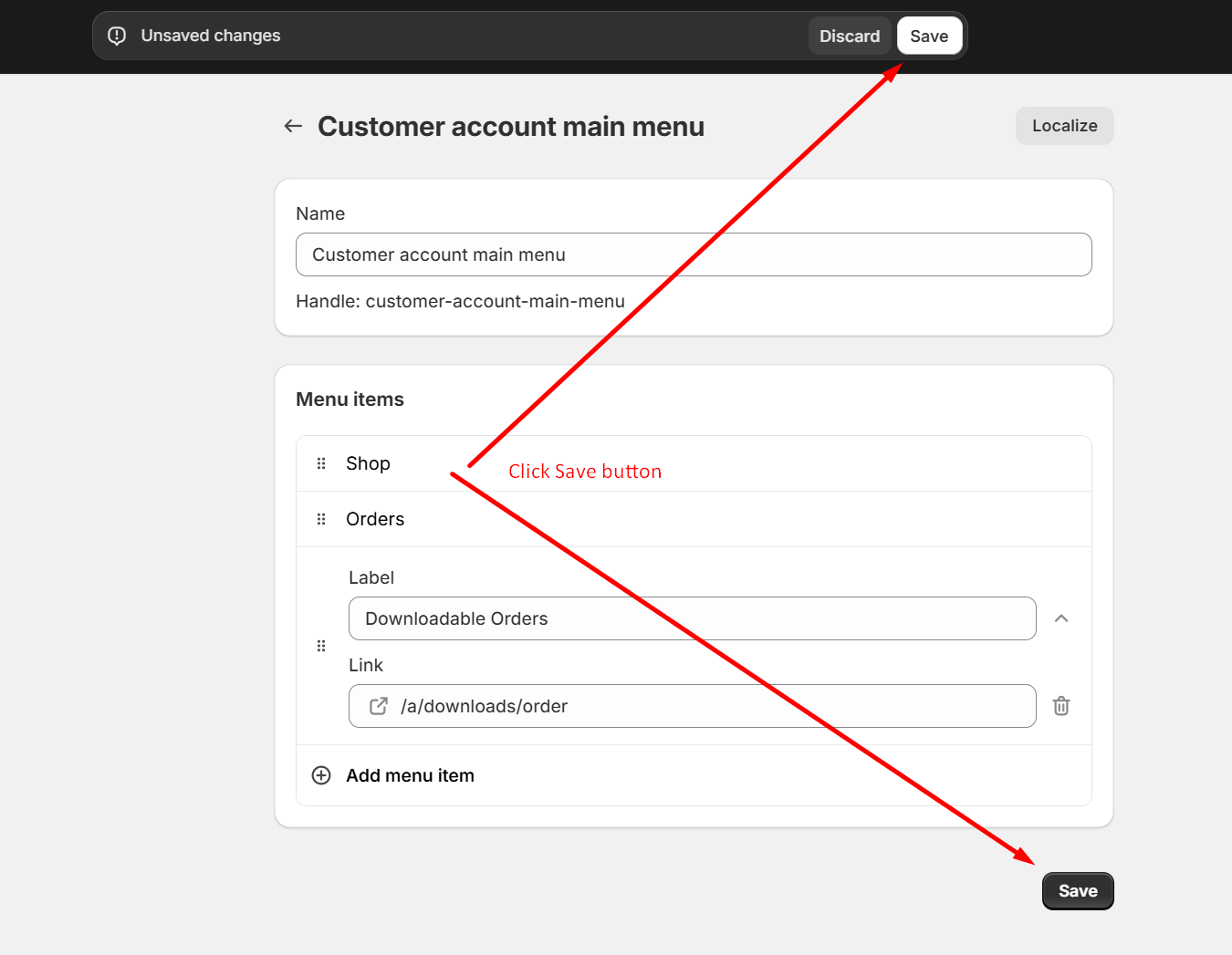
<figure><img src="https://1863660695-files.gitbook.io/~/files/v0/b/gitbook-x-prod.appspot.com/o/spaces%2F6iG7j4lDhziM0FqdCCU8%2Fuploads%2FKuGKKvswkmB08SCqXJvH%2Fimage.png?alt=media&amp;token=cebee09a-3420-47c4-be07-779cd4176835" alt="Menu editor with the Save button"><figcaption><p>Save the change</p></figcaption></figure>

<figure><img src="https://1863660695-files.gitbook.io/~/files/v0/b/gitbook-x-prod.appspot.com/o/spaces%2F6iG7j4lDhziM0FqdCCU8%2Fuploads%2FcdDXVmEgqIjWwHkHkprM%2Fimage.png?alt=media&amp;token=08c7cb66-b47f-48a1-a48f-29ecb2d95c99" alt="Customer account page showing the new downloads menu item"><figcaption><p>Your result</p></figcaption></figure>

## 3. Fix error "There's a problem loading this page"

<figure><img src="https://1863660695-files.gitbook.io/~/files/v0/b/gitbook-x-prod.appspot.com/o/spaces%2F6iG7j4lDhziM0FqdCCU8%2Fuploads%2FaWIa0OX2Pi8bfnoGZtWD%2Fimage.png?alt=media&amp;token=a433ae5f-cf09-454d-a369-a294fb1b2f02" alt="Error page shown when the downloads block is missing from the customer account page"><figcaption></figcaption></figure>

In case you facing the above issue, you can follow this steps to fix that issue.

1 - On your Shopify admin page -> Settings

<figure><img src="https://1863660695-files.gitbook.io/~/files/v0/b/gitbook-x-prod.appspot.com/o/spaces%2F6iG7j4lDhziM0FqdCCU8%2Fuploads%2Fgit-blob-dee113ce80ad81d7913d0dfd1c78578853c1ad38%2Fadmin-settings-open-checkout.png?alt=media" alt="Shopify admin Settings navigation with the Checkout item"><figcaption></figcaption></figure>

2 - Select **Checkout** tab -> Click **Edit** button

<figure><img src="https://1863660695-files.gitbook.io/~/files/v0/b/gitbook-x-prod.appspot.com/o/spaces%2F6iG7j4lDhziM0FqdCCU8%2Fuploads%2Fgit-blob-006991399796175ece7608d0818870cae216c491%2Fadmin-checkout-config-edit.png?alt=media" alt="Checkout configuration page with the Edit button in the Configurations card"><figcaption></figcaption></figure>

3 - Select App Icon on the Top - Left screen -> Find **Downloadable Orders Page** block -> Click Plus Icon -> Select **Accounts** page

<figure><img src="https://1863660695-files.gitbook.io/~/files/v0/b/gitbook-x-prod.appspot.com/o/spaces%2F6iG7j4lDhziM0FqdCCU8%2Fuploads%2FdFPkX2SoXAoAuH6SLaWq%2Fimage.png?alt=media&amp;token=f5bc8591-7ed4-465d-b9d1-d3740b059d34" alt="App icon in the checkout editor to find the Downloadable Orders Page block"><figcaption></figcaption></figure>

4 - Click **Save** button

<figure><img src="https://1863660695-files.gitbook.io/~/files/v0/b/gitbook-x-prod.appspot.com/o/spaces%2F6iG7j4lDhziM0FqdCCU8%2Fuploads%2FCM5hyNqdBNTRSas33tp5%2Fimage.png?alt=media&amp;token=275d1b4a-da29-4f6b-bbf8-d8f1e46422d7" alt="Adding the Downloadable Orders Page block to the Accounts page"><figcaption></figcaption></figure>

5 - Reload Customer Account page to check your result

<figure><img src="https://1863660695-files.gitbook.io/~/files/v0/b/gitbook-x-prod.appspot.com/o/spaces%2F6iG7j4lDhziM0FqdCCU8%2Fuploads%2Fkle7dIBzO5JJg2xxgqzj%2Fimage.png?alt=media&amp;token=402ceb98-426f-4bb8-8e75-f0f2fd2b19d3" alt="Customer account page reloaded with the downloads page working"><figcaption></figcaption></figure>