> For the complete documentation index, see [llms.txt](https://helpdesk.ldtsoft.work/ldt-online-course/llms.txt). Markdown versions of documentation pages are available by appending `.md` to page URLs; this page is available as [Markdown](https://helpdesk.ldtsoft.work/ldt-online-course/build-your-course/how-to-duplicate-a-course.md).
# How to Duplicate a Course
Copy a whole course, its sections and lessons, into a new course
Duplicating a course is a quick and efficient way to create a new course with the same structure, content, and settings as an existing one.
This is particularly useful for creating similar courses, updating content for a new cohort, or using a course as a template without having to start from scratch.
### 1. Select the course to duplicate
From your Shopify Admin, go to **Apps** -> **LDT Online Courses** -> **Courses** to view all your courses
Find the course you want to duplicate from the list
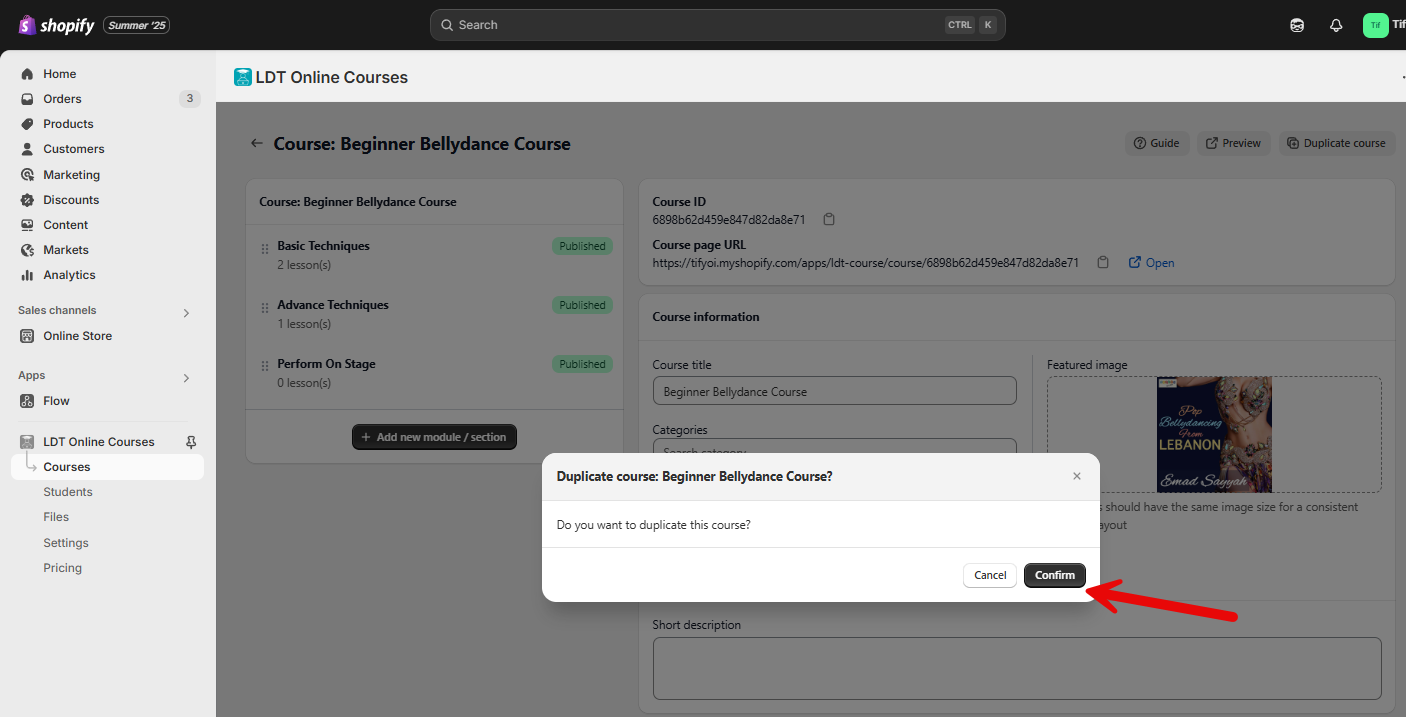
Select the course to open it, then click **Duplicate course** in the title row.
### 2. Choose what the copy keeps, then confirm
In the **Duplicate course: ...?** dialog, choose whether the copy keeps the original's selling setup:
* **Copy linked products and enrollment tags** ticked - the copy keeps the same linked products (**Option 1: Auto enroll via Shopify Products**) and the same customer tags (**Option 2: Auto enroll via Customer Tags**), so it sells and enrolls exactly like the original.
* Left unticked (the default) - the copy starts with no linked products and no enrollment tags. Link products or tags on the copy before you sell it.
Then click **Confirm**.
### 3. Name the new course and save
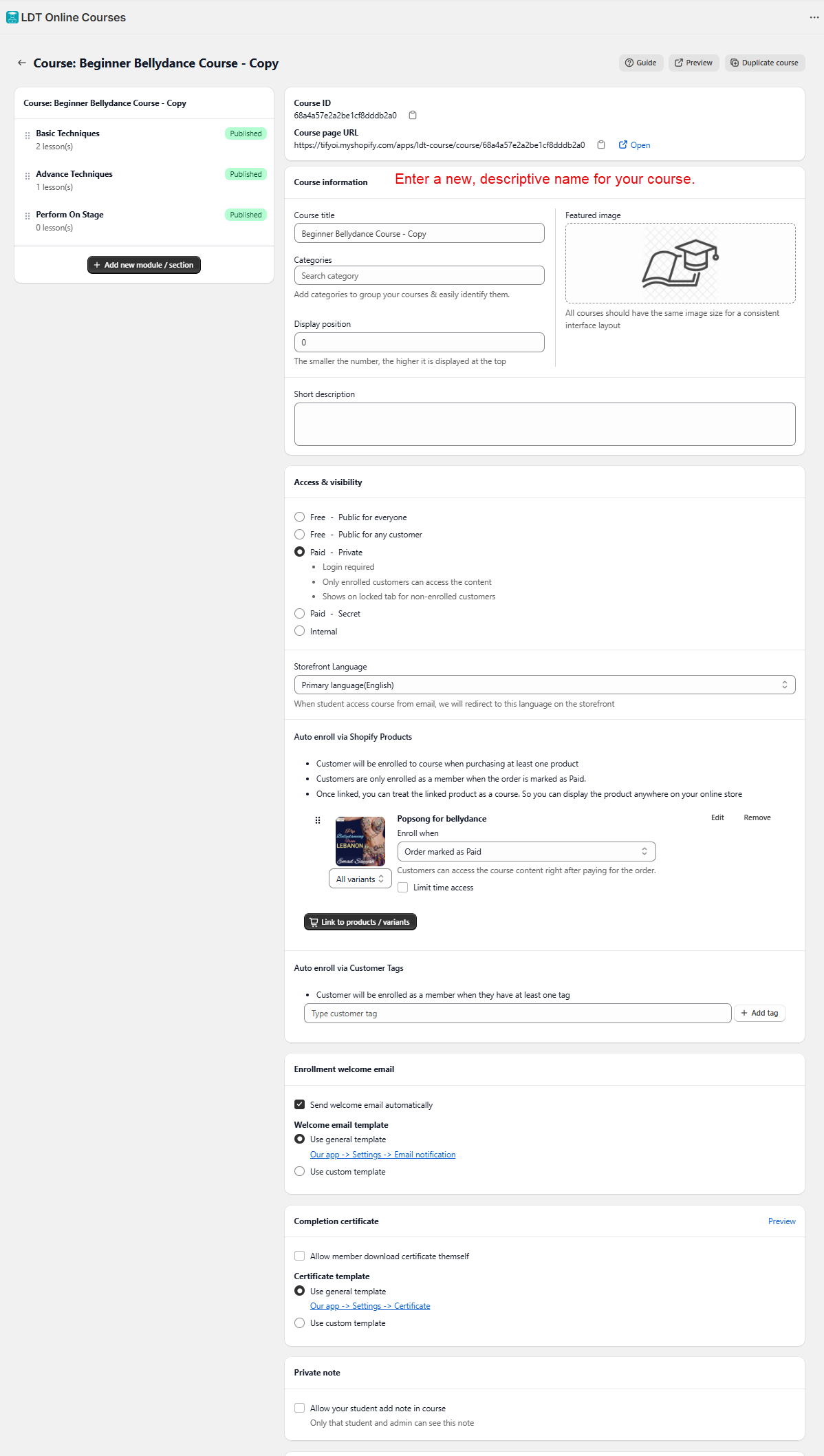
* The app creates the copy with the same title plus " - Copy" and opens its page.
* Enter the new name in the **Course title** field.
* The top bar then shows **Unsaved changes** with **Discard** and **Save** — click **Save**.
### 4. Review the duplicated course
You are taken to the duplicated course's page as soon as you confirm.
All the modules, lessons, and content blocks from the original course will be copied over. Linked products and enrollment tags come along only when you ticked **Copy linked products and enrollment tags** in the dialog.
You can now edit the new course's details, such as the title, categories, products, or visibility settings, to fit your needs.

This saves you time by allowing you to easily reuse the structure and content without manual reconstruction.
### Result
You have a second course with the same modules, lessons and content; linked products and enrollment tags come along only if you ticked the copy option. Change the title, categories, products and visibility on the copy before you sell it.
### Troubleshooting
* **The copy has no linked products or enrollment tags.** The copy option was left unticked; link products or tags on the copy before selling it.
* **The copy is still named "… - Copy".** Rename it in **Course title** and click **Save** on the **Unsaved changes** bar.
* **A lesson or module is missing from the copy.** Wait for the duplication to finish, then refresh the new course; a very large course can take a moment.
* **I copied the wrong course.** Delete the copy and duplicate the original again — the original is not changed by duplication.
### Related pages
* [How to Duplicate a Lesson](https://helpdesk.ldtsoft.work/ldt-online-course/build-your-course/how-to-duplicate-a-lesson.md)
* [How to organise courses with categories](https://helpdesk.ldtsoft.work/ldt-online-course/build-your-course/how-to-organise-courses-with-categories.md)
* [How to preview a course before publishing](https://helpdesk.ldtsoft.work/ldt-online-course/build-your-course/how-to-preview-a-course-before-publishing.md)