> For the complete documentation index, see [llms.txt](https://helpdesk.ldtsoft.work/ldt-online-course/llms.txt). Markdown versions of documentation pages are available by appending `.md` to page URLs; this page is available as [Markdown](https://helpdesk.ldtsoft.work/ldt-online-course/build-your-course/optimizing-the-learning-experience-how-to-structure-your-course-on-ldt-online-courses.md).
# Optimizing the Learning Experience: How to Structure Your Course on LDT Online Courses
Plan sections and lessons so a course is easy to follow
A course is easier to build, sell and update when it has a clear three-level shape: **course → module → lesson**.
### 1. Understand the three levels
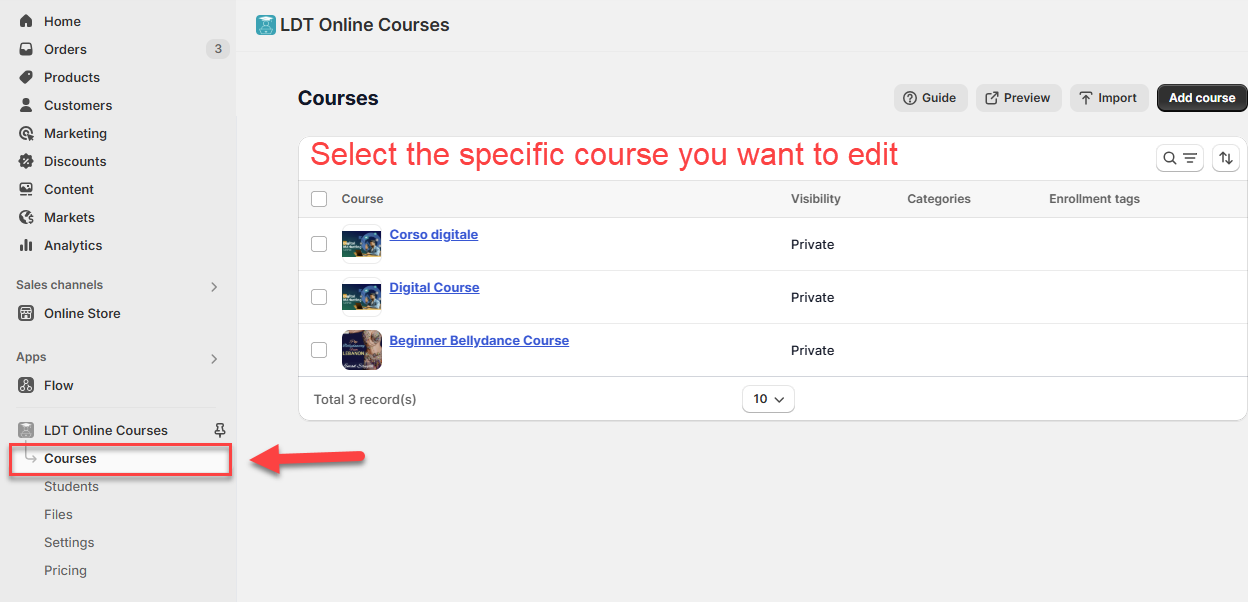
* **Course** — the whole program, for example *Beginner Bellydance Course*.
* **Module** — a group of lessons for one topic or level, for example *Module 1: Basic Techniques*.
* **Lesson** — the actual content: a video, a PDF, a quiz or a text page.
A *Digital Marketing* course might be **Module 1: Basic SEO** (5 lessons) plus **Module 2: Advanced Facebook Ads** (3 lessons).
### 2. Create the course
In the app, open **Courses** and click **Add Course**. Enter a title, a short description and a category.
### 3. Add the modules
On the course editing page, click **Add module/section**, name it and choose its visibility. You can also require the previous module before this one opens.
### 4. Add the lessons
Inside a module, click **Add lesson** (or **Add new lesson**). Give the lesson a title, then add video, documents, quizzes or other content with **Add contents**.
### 5. Arrange the path
Drag lessons between modules or reorder them inside a module. Check the student view with **Preview** before you publish.
### Result
Students see a clear path: the course, its modules, and the lessons inside each module. You can update one lesson without rebuilding the course, and each module can carry its own release rules.
### Troubleshooting
* **A lesson is not visible.** Check the lesson's **Published/Schedule/Drip** setting and its module's visibility.
* **A module is empty.** A module needs at least one lesson; add one before publishing.
* **I need to move a lesson.** Drag it in the course editor; the lesson content moves with it.
* **A student cannot open the next module.** Check a **require previous module** rule on the module.
* **I want to sell modules separately.** Use the product/linked course setup; a module alone is not a separate product.
### Related pages
* [How to organise courses with categories](https://helpdesk.ldtsoft.work/ldt-online-course/build-your-course/how-to-organise-courses-with-categories.md)
* [How to Create a Lesson with Direct Video Upload](https://helpdesk.ldtsoft.work/ldt-online-course/build-your-course/how-to-create-a-lesson-with-direct-video-upload.md)
* [How to apply a free-preview lesson](https://helpdesk.ldtsoft.work/ldt-online-course/storefront-and-portal/allowing-customers-to-preview-your-course-content.md)
* [How to place a test order](https://helpdesk.ldtsoft.work/ldt-online-course/enroll-and-price/how-to-place-a-test-order-to-make-sure-everything-work.md)