> For the complete documentation index, see [llms.txt](https://helpdesk.ldtsoft.work/ldt-online-course/llms.txt). Markdown versions of documentation pages are available by appending `.md` to page URLs; this page is available as [Markdown](https://helpdesk.ldtsoft.work/ldt-online-course/emails-and-notifications/how-to-translate-your-automated-emails-into-local-languages.md).
# How to Translate Your Automated Emails into Local Languages
Write the automated emails in each language your students read
Translate each automated email so a customer reads the welcome, invitation or notification in their own language.
### 1. Open the email template
In the app, open **Settings** -> **Email notification** -> **Other email templates**. The list includes **Notes in the course**, **Essay questions**, **Customer account invitation** and the other templates; click **Edit email template** on the one you want to translate.
### 2. Choose the language
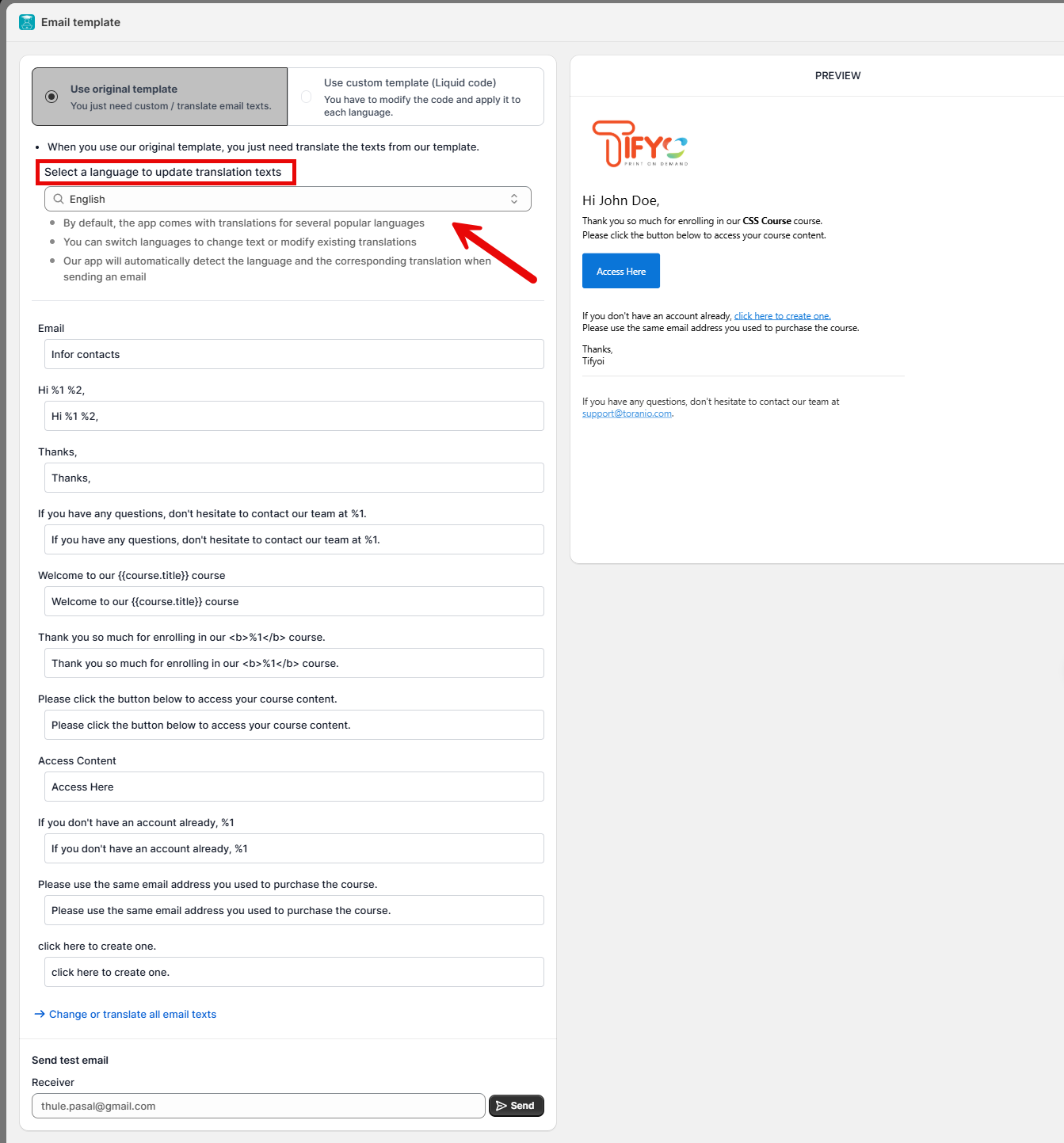
In the template window, find **Select a language to update translation texts** and pick the language from the dropdown or search. The app shows the current text for that language.
### 3. Edit and save the translated text
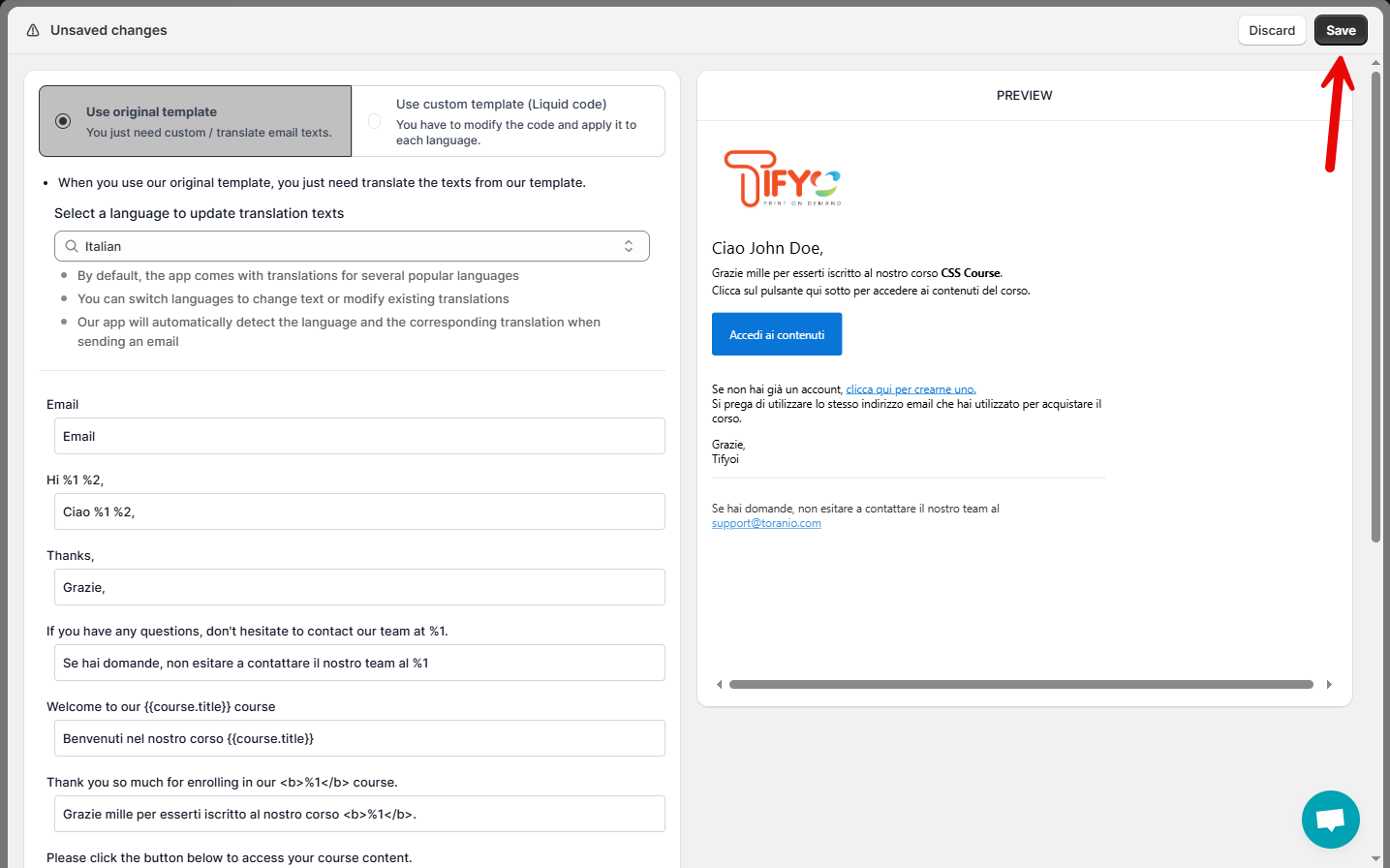
Change the subject and body on the left, keeping the system variables and links intact. Click **Save**; the translation is active immediately. Use **Send test email** to check the result before saving.
### Result
When a customer's language matches the translated template, the app sends that version; otherwise it falls back to the default text. Each template and language is saved separately, so changing one does not overwrite another.
### Troubleshooting
* **The customer receives the English email.** Check that their language is set correctly and that this template has a saved translation for it.
* **The translation is not saved.** Click **Save** inside the template; closing the window discards the edit.
* **A variable or link is missing.** Keep the system variables and links in the translated text; a test email catches broken placeholders.
* **The language is missing from the dropdown.** Use the search in the language selector; the list follows the app's language catalogue.
* **The design looks different from the default.** Translation edits the text only; use the email design settings for layout.
### Related pages
* [How to translate the app's own texts](https://helpdesk.ldtsoft.work/ldt-online-course/translations/how-to-translate-the-app-texts.md)
* [How to setup multilingual courses](https://helpdesk.ldtsoft.work/ldt-online-course/translations/how-to-setup-multilingual-courses.md)
* [How to change the design of the email?](https://helpdesk.ldtsoft.work/ldt-online-course/emails-and-notifications/how-to-change-the-design-of-the-email.md)
* [How to check email delivery status](https://helpdesk.ldtsoft.work/ldt-online-course/emails-and-notifications/how-to-check-email-delivery-status.md)