> For the complete documentation index, see [llms.txt](https://helpdesk.ldtsoft.work/ldt-online-course/llms.txt). Markdown versions of documentation pages are available by appending `.md` to page URLs; this page is available as [Markdown](https://helpdesk.ldtsoft.work/ldt-online-course/enroll-and-price/setting-up-a-subscription-course-with-enrollment-tags.md).
# Setting Up a Subscription Course with Enrollment Tags
Enroll subscribers by tagging them from your subscription app
This guide provides a comprehensive, step-by-step walkthrough to help you create a course that automatically grants access based on a customer's subscription status using the Seal Subscriptions app and LDT's Customer Tags feature.
## How This Method Works
**Tag Management**: A subscription app (like Seal Subscriptions) automatically adds or removes a specific tag from a customer's profile based on their active subscription status.
**LDT Sync**: Your LDT Online Courses app continuously checks for this tag. If a customer has the tag, they are automatically enrolled in the course. If the tag is removed (due to a canceled subscription), their access is automatically revoked.
## Advantages of This Method
**One Subscription, Multiple Courses**: A single tag can grant access to an entire collection of courses without complex, individual setups.
**Flexibility**: Easily add or remove courses from a subscription package without changing settings in the subscription app.
**Fully Automated**: The enrollment and access revocation process is 100% automated.
## Step-by-Step Setup Instructions
**From the Shopify Admin & Seal Subscriptions App**
### 1. Install and Configure the Seal Subscriptions App
Before setting up your course, you need to enable the automatic customer tagging feature in the subscription app.
* Install the App: Navigate to the Shopify App Store, search for "[Seal Subscriptions](https://apps.shopify.com/seal-subscriptions)," and install it.
From your Shopify admin, go to Apps -> Seal Subscriptions.
* Go to Settings -> General settings.
* Select the Customers tab.
* Find the option: "Tag customers with tags based on the status of their subscriptions".
In the "Active subscriber tag" field, enter a unique tag name (e.g., active\_member or seal\_active\_subscriber).
Important: Note the exact tag name you choose. You will need it in the next step.
Click Save to apply your settings.
**From the LDT Online Courses App**
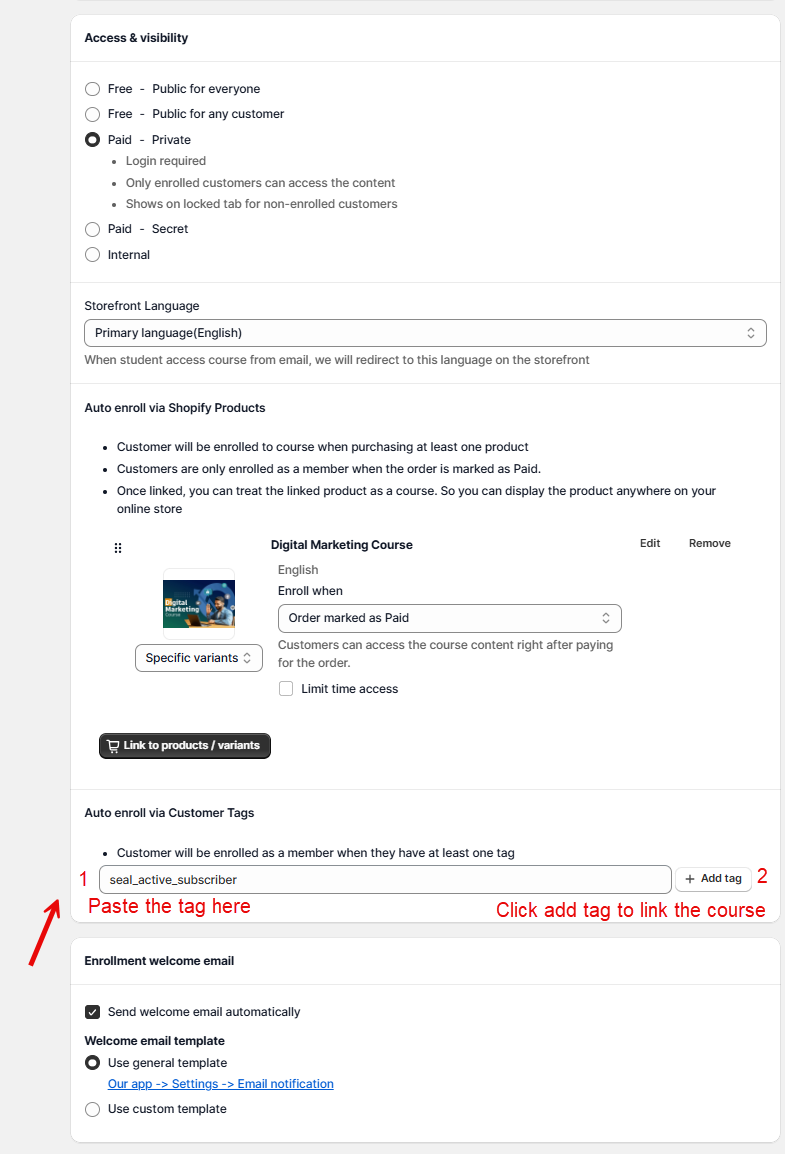
### 2. Set Up Tag-Based Auto-Enrollment
This step links your course to the customer tag, enabling LDT to automatically manage access.
Access the Course in LDT:
* From your Shopify admin, go to Apps -> LDT Online Courses -> Courses.
* Choose the course you want to include in the subscription, or create a new one.
Link Course to Customer Tag:
On the course editing page, find the section "Sell your course through Customer Tags".
Check the option: "Customer will be enrolled as a member when they have at least one tag".
In the "Use customer tag" field, enter the exact tag name you set up in the Seal Subscriptions app (e.g., active\_member).
Tip: You can add multiple tags here, separated by a comma.
Scroll down and click Save to save the course changes.
### 3. Test Your Setup
To ensure your entire system is working correctly before you go live.
* Instructions: Follow our guide on[ how to grant free course access using a 100% discount code](https://helpdesk.ldtsoft.work/ldt-online-course/get-started/how-to-grant-free-course-access-using-a-100-discount-code) to simulate a customer's purchase and verify that the enrollment and timed access features function as intended.
\\
### Result
The subscription app adds the active tag while the subscription is paid, and the app enrolls the tagged customer into every course set to that tag. When the tag is removed, the courses tied to it stop enrolling new customers; existing access follows the course's own expiry rules.
### Troubleshooting
* **A subscriber is not enrolled.** Check that the tag name in the subscription app exactly matches the tag on the course and that the course's tag auto-enroll is enabled.
* **The tag is added but the course stays locked.** The customer may have been tagged after enrollment; check the student's course list, or re-save the course link.
* **Access is not revoked when the subscription ends.** Tag-based access only controls enrollment; set a time limit on the course if access must expire.
* **The wrong customers are enrolled.** A tag is shared across all courses using it; use a specific tag per plan/product.
* **The tag never appears.** Check the subscription app's active/inactive tag mapping and that its webhook/plan is working.
### Related pages
* [A Step-by-Step Guide to Setting Up an Automated Subscription Course](https://helpdesk.ldtsoft.work/ldt-online-course/enroll-and-price/a-step-by-step-guide-to-setting-up-an-automated-subscription-course.md)
* [How to sell your course as subscription/membership](https://helpdesk.ldtsoft.work/ldt-online-course/enroll-and-price/how-to-sell-your-course-as-subscription-membership.md)
* [How to change course visibility](https://helpdesk.ldtsoft.work/ldt-online-course/enroll-and-price/how-to-change-course-visibility.md)