> For the complete documentation index, see [llms.txt](https://helpdesk.ldtsoft.work/ldt-online-course/llms.txt). Markdown versions of documentation pages are available by appending `.md` to page URLs; this page is available as [Markdown](https://helpdesk.ldtsoft.work/ldt-online-course/storefront-and-portal/how-to-add-the-courses-banner-to-your-customer-account-page.md).
# How To Add the Courses Banner to your Customer Account Page
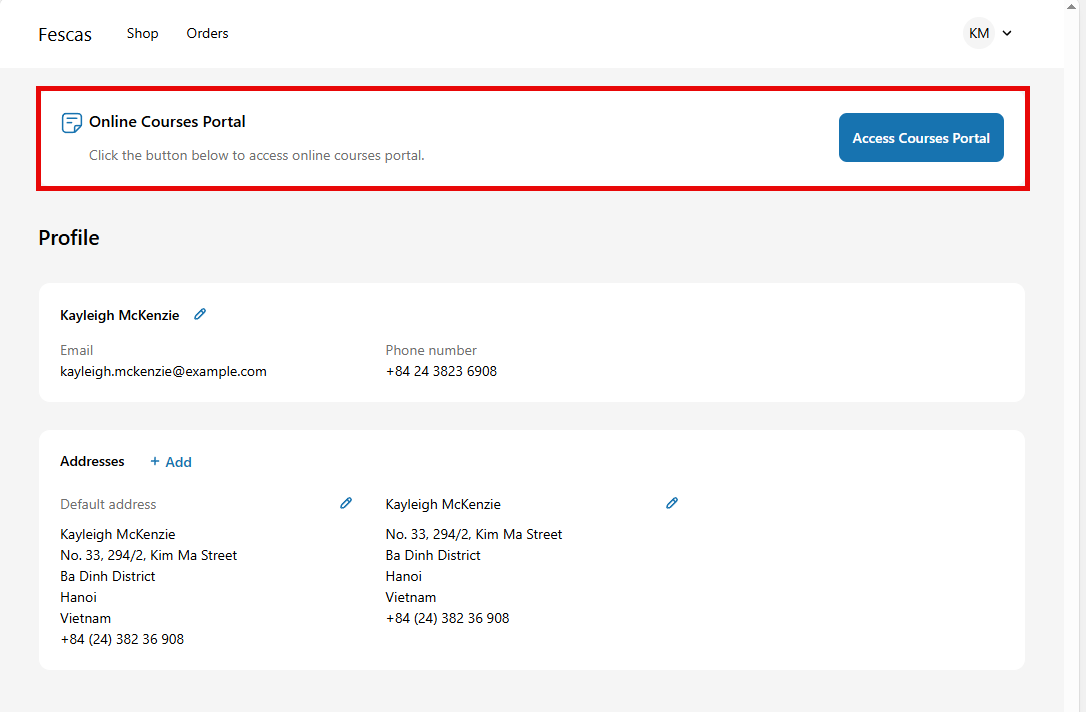
Add a My Courses banner to the customer account page
Adding the LDT Online Courses app block to your Shopify customer account pages is a key step to ensure your courses and communities are easily accessible to logged-in customers. This guide will walk you through the process, making sure your valuable content is displayed prominently right above the order history.
### Option 1: Navigate to the Customer Account Page Settings
From your LDT Online Courses app, navigate to the **Settings** menu.
In the Settings sidebar, select **Customer account page**. This section provides a dedicated interface for integrating our app with your Shopify customer account pages.
### Option 2: Access **Customer account page via** Shopify Theme Editor Admin
Access the Theme Editor:
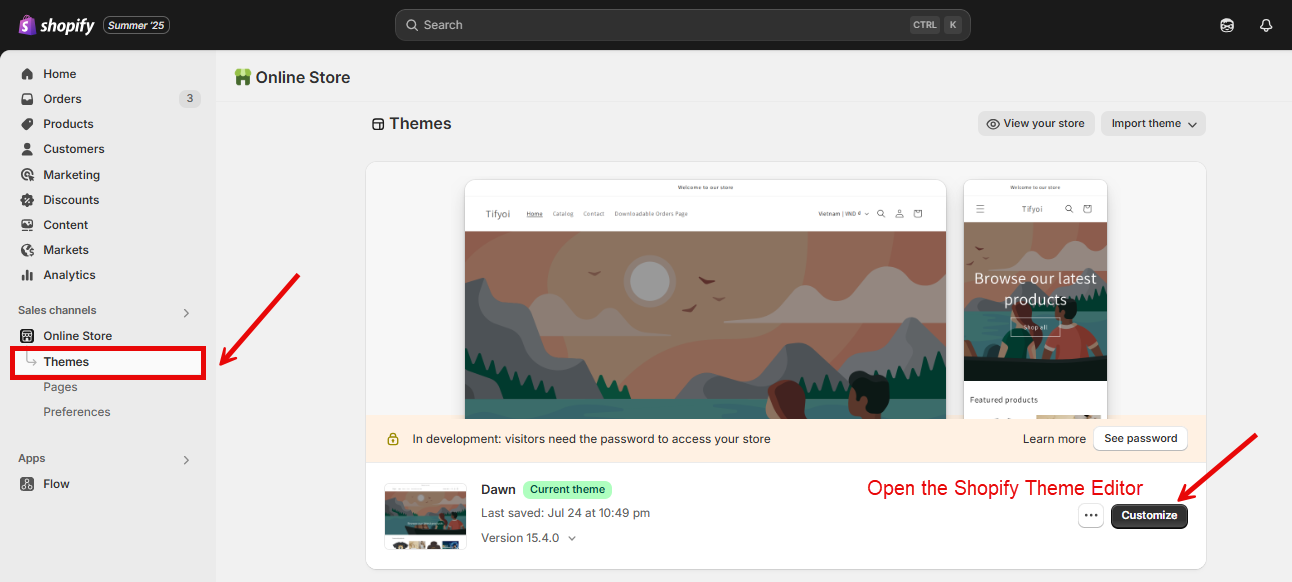
* From your Shopify Admin, go to **Online Store** -> **Themes**.
* Find your current theme and click the **Customize** button.
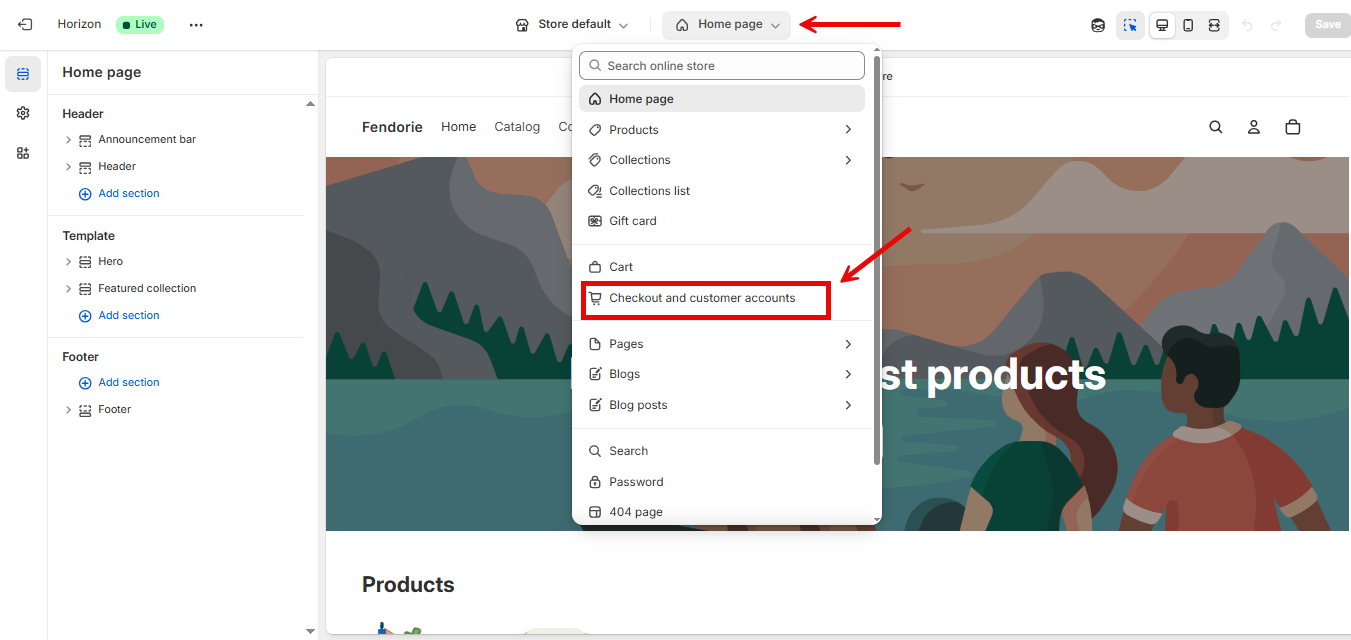
* In the top-center dropdown menu, click to switch to the **checkout and customer account** item
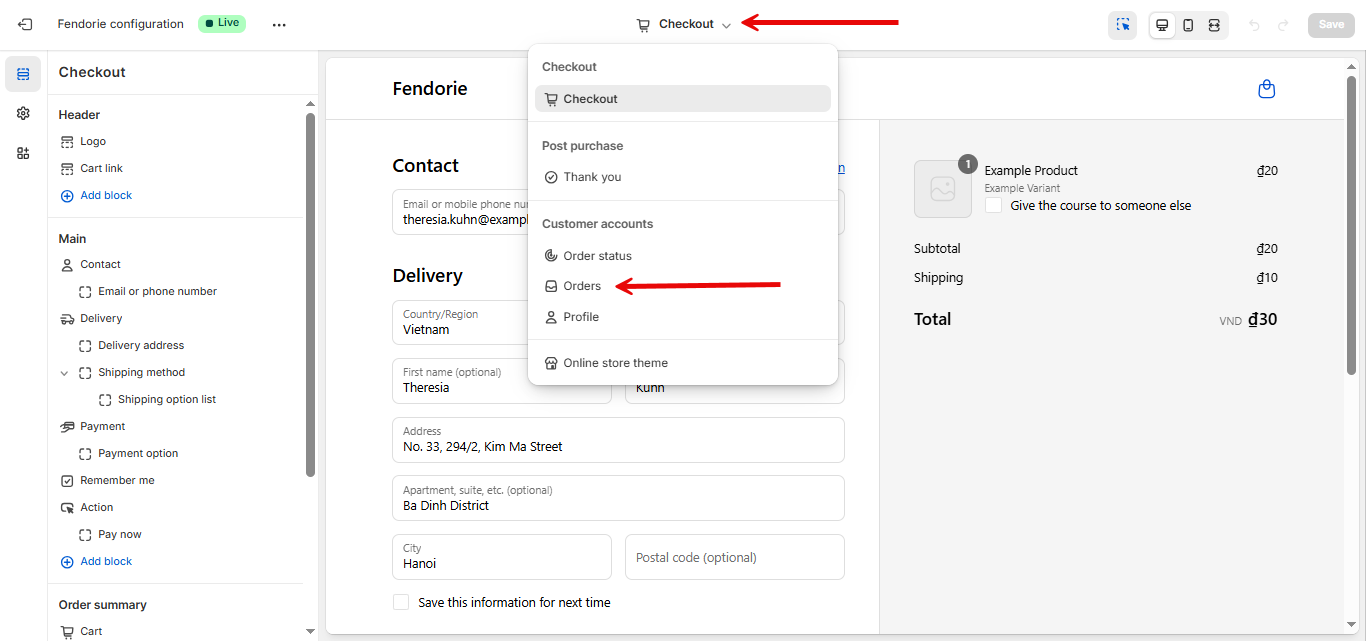
Select the Order page:
* In the top-center dropdown menu, click to switch to order page.
#### Step 3: Add the LDT App Blocks
In the Shopify theme editor, you will see a list of available blocks on the left-hand side.
Scroll down to find the LDT Online Courses section.
There are two recommended blocks you should add:
* **LDT - Course Content**: This block displays the courses and communities a customer is enrolled in.
* **Courses Portal Banner**: This block adds a prominent banner with a call-to-action button to access the course portal.
Click and drag these blocks from the list into your page layout. We highly recommend placing them above the "Orders" section to ensure they are the first thing a customer sees when they log in.
After you have added the blocks and made any text customizations, click the Save button at the top right of the theme editor to apply the changes to your store.
#### Step 4: Customize Your Account Page Text (Optional)
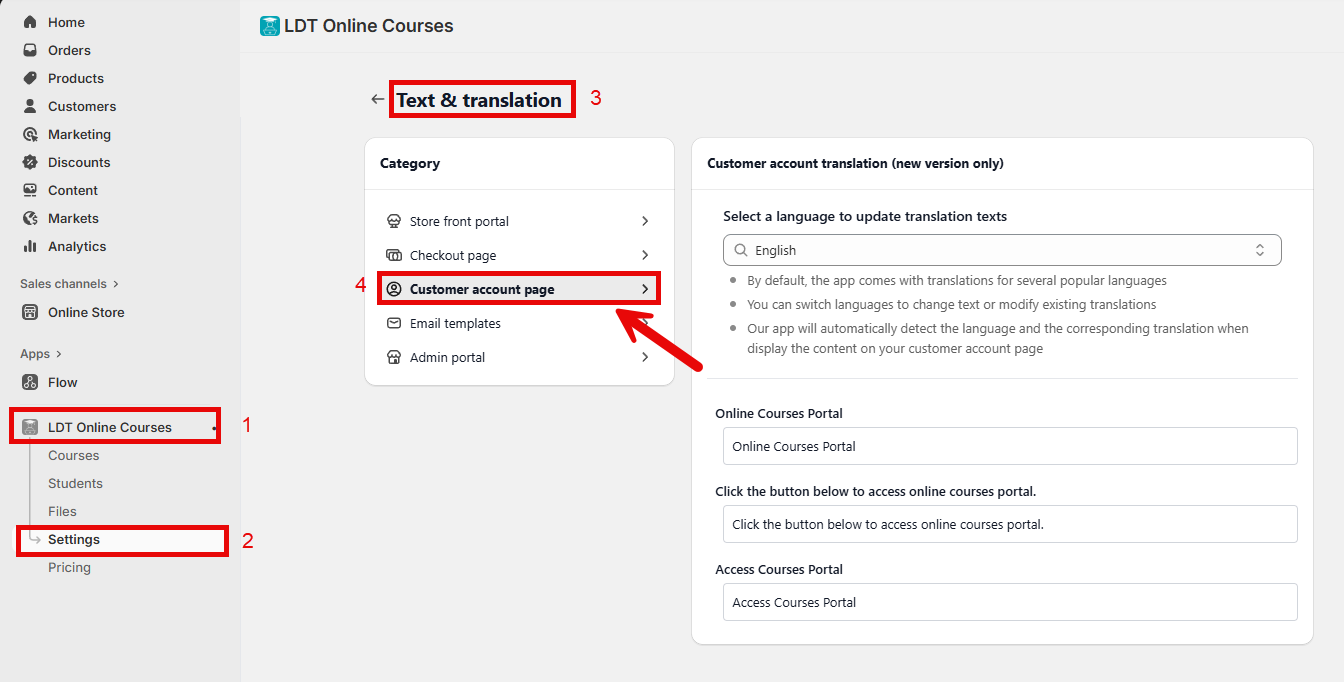
If you wish to change the text displayed on the customer account page, such as the banner title or button text, you can do so in the Text & translation settings.
From the LDT app's main menu, go to **Settings** -> T**ext & translation**.
* Select **Customer account page** from the categories.
* Choose the language you wish to edit and update the text fields for "Online Courses Portal" and "Access Courses Portal" as needed. The app automatically detects the customer's language and displays the corresponding translation.
Preview