> For the complete documentation index, see [llms.txt](https://helpdesk.ldtsoft.work/ldt-online-course/llms.txt). Markdown versions of documentation pages are available by appending `.md` to page URLs; this page is available as [Markdown](https://helpdesk.ldtsoft.work/ldt-online-course/troubleshoot/troubleshoot-missing-course-access-in-customer-account.md).
# Troubleshoot Missing Course Access in Customer Account
A buyer cannot see the course in their account: what to check first
A buyer says the course is missing from their customer account. Check which customer-account version the store uses, then put the right blocks on the page.
### 1. Check the account version
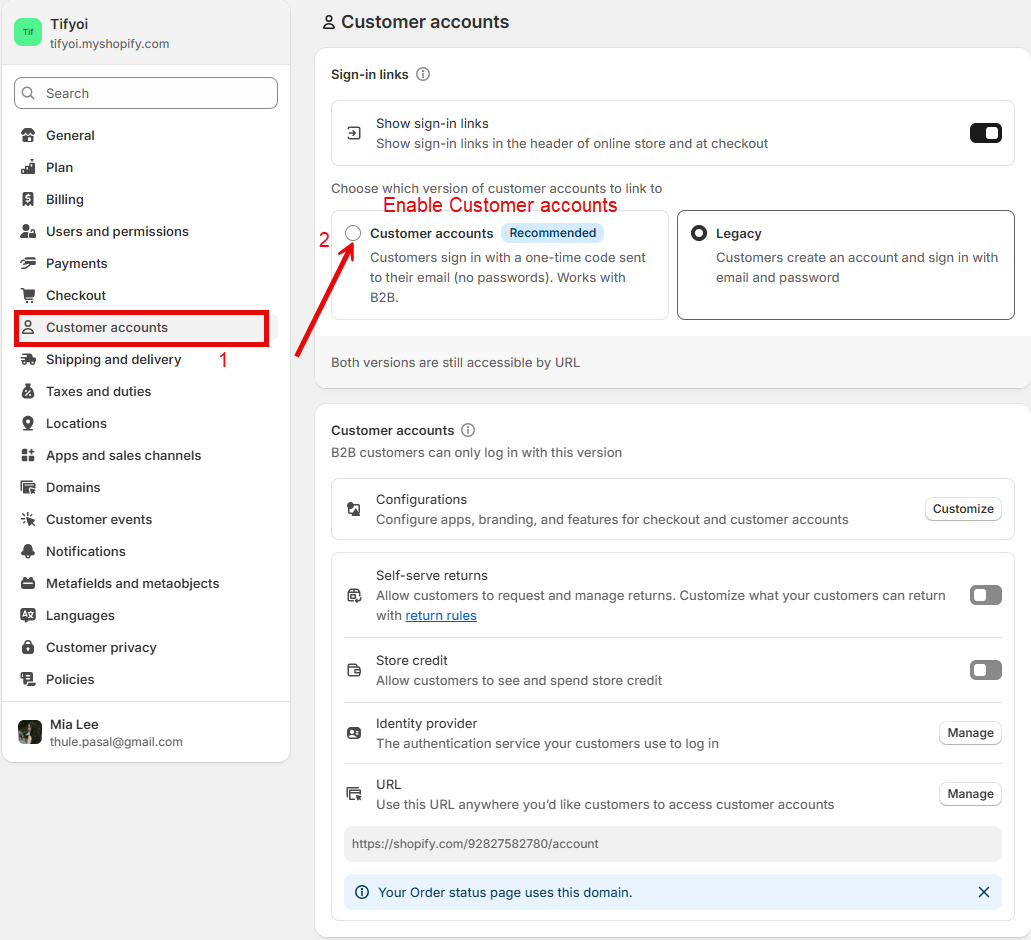
In Shopify admin, open **Settings** -> **Customer accounts**. The page shows whether the store uses the **new** customer accounts or the **legacy** (classic) version.
### 2. Legacy account: set up the app's banner/menu
If the store is on legacy accounts, open the app's **Settings** -> **Customer account page** -> **Legacy customer account** and set up **My Courses banner** / **My Courses menu**. Save, then check the account page as a customer.
### 3. New account: add the app blocks
If the store uses the new customer accounts, add **LDT - Course Content** and the banner to the customer account template in the theme editor, then save. The app blocks only appear on the new version.
### 4. Confirm the login email
Ask the customer to sign in with the **same email used on the order**. A different email is a different customer and sees no course. New customer accounts use a one-time code sent to that email.
### Result
The customer account page shows the course portal or the My Courses entry, and the customer can open the courses bought with that email. The correct setup depends on the account version, not on the theme alone.
### Troubleshooting
* **The blocks do not appear.** They require the new customer accounts; on legacy, use the app's legacy banner/menu instead.
* **The customer cannot sign in.** Send a new one-time code to the order email; a typo in the email creates a separate customer.
* **The course is missing but the account is right.** Check the order/product link and the student's enrollment on the Students page.
* **The menu item exists but opens an error.** Check the portal URL/app proxy path and the block target.
* **The customer changed their email.** The enrollment belongs to the old email; update the student or grant access to the new address.
### Related pages
* [How To Add the Courses Portal to your Customer Account Page](https://helpdesk.ldtsoft.work/ldt-online-course/storefront-and-portal/how-to-add-the-courses-portal-to-your-customer-account-page.md)
* [How To Add the Courses Banner to your Customer Account Page](https://helpdesk.ldtsoft.work/ldt-online-course/storefront-and-portal/how-to-add-the-courses-banner-to-your-customer-account-page.md)
* [How to set up the course portal on a legacy customer account](https://helpdesk.ldtsoft.work/ldt-online-course/storefront-and-portal/how-to-set-up-the-portal-on-a-legacy-customer-account.md)
* [How to extend or re-grant a student's access](https://helpdesk.ldtsoft.work/ldt-online-course/students-and-reports/how-to-grant-or-extend-course-access.md)