> For the complete documentation index, see [llms.txt](https://helpdesk.ldtsoft.work/ldt-online-course/llms.txt). Markdown versions of documentation pages are available by appending `.md` to page URLs; this page is available as [Markdown](https://helpdesk.ldtsoft.work/ldt-online-course/storefront-and-portal/customizing-my-courses-page-url.md).
# Customizing My Courses Page URL
Change the web address of your course portal to your own path
Give the course portal a short path on your own store domain, for example `/community/course` instead of the default `/apps/ldt-course`.
### 1. Open My courses page settings
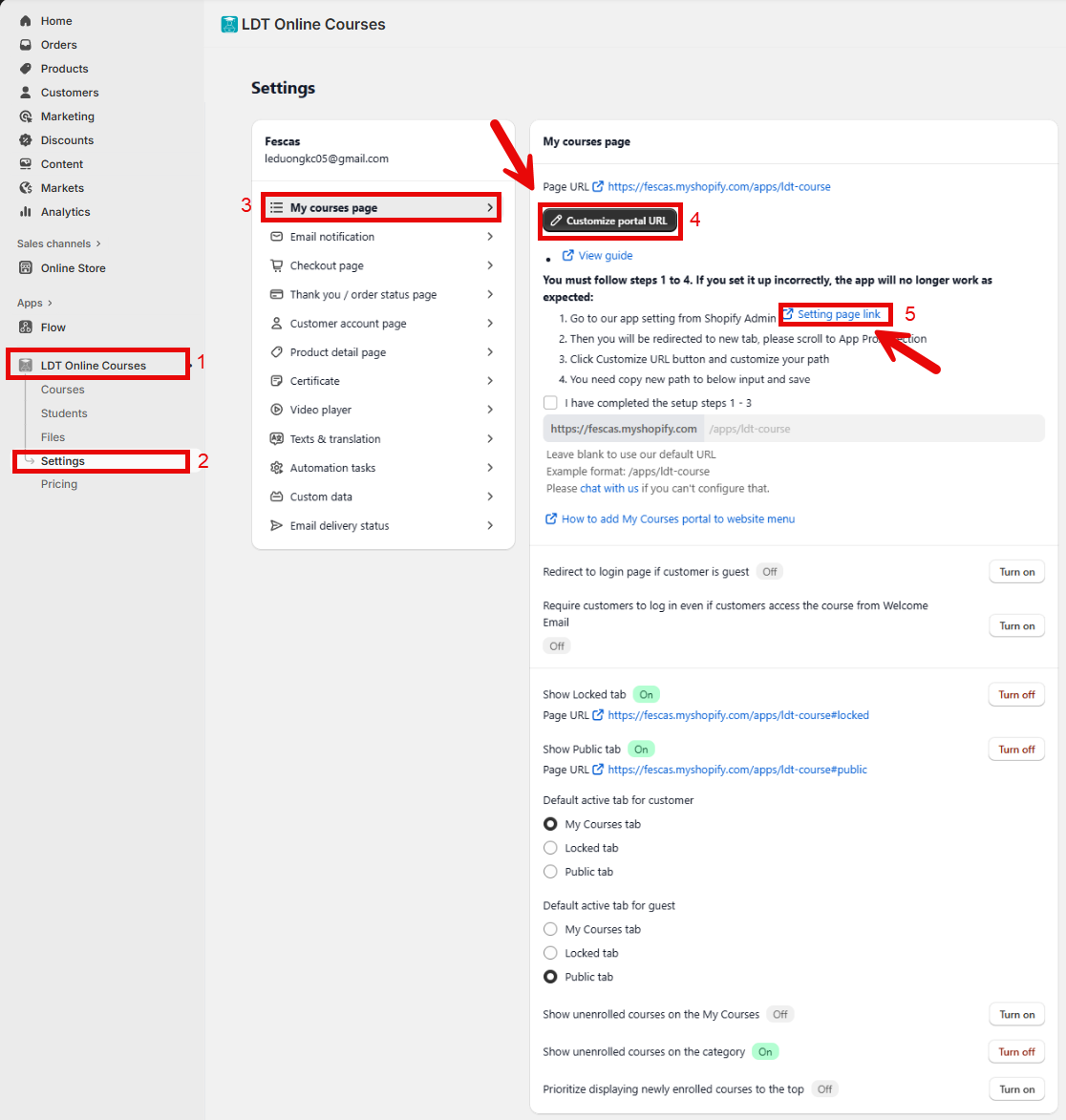
In the app, open **Settings** -> **My courses page**. The current **Page URL** is shown at the top.
### 2. Open the app proxy in Shopify
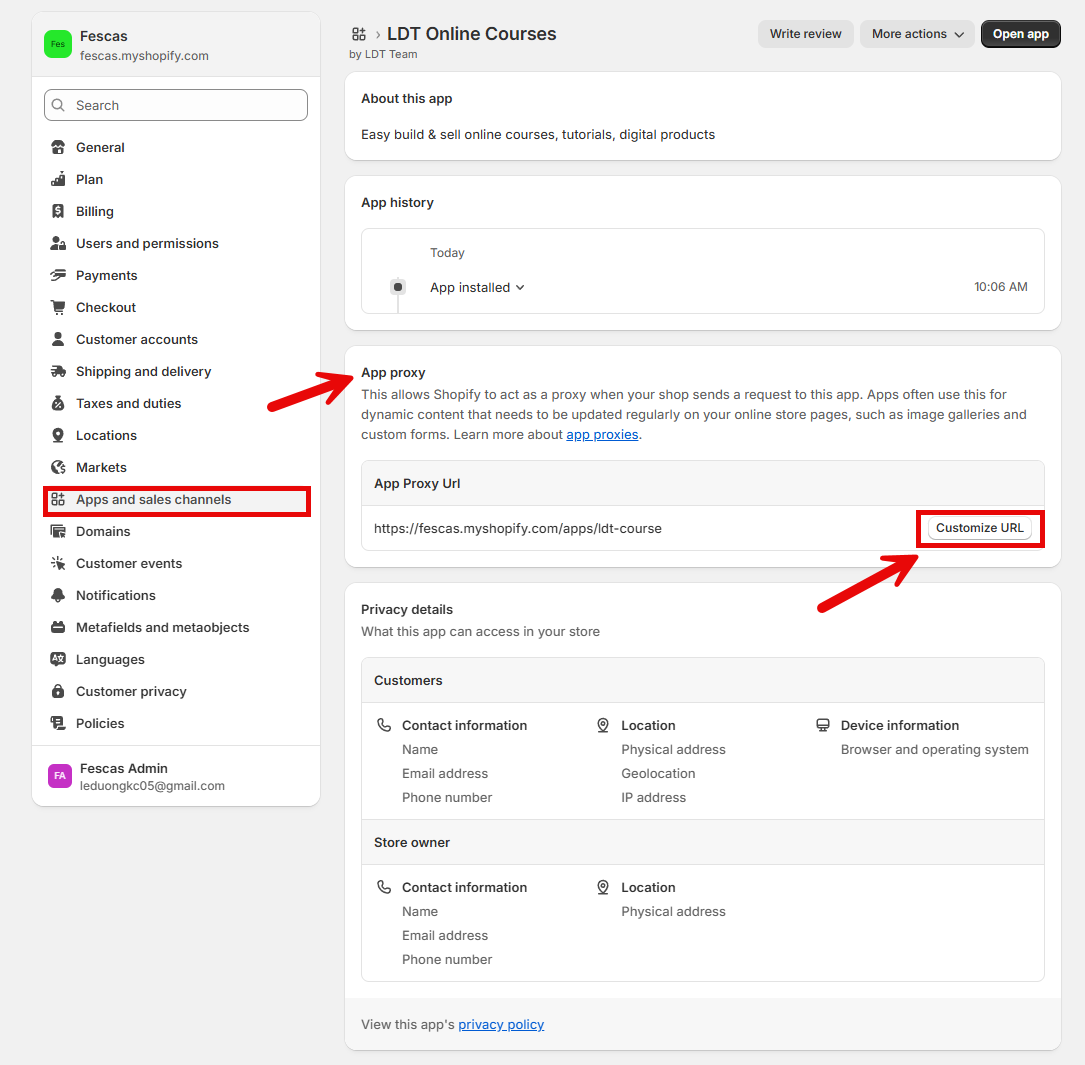
Click **Setting page link**. It takes you to the app's **App proxy** section in Shopify admin.
### 3. Change the app proxy path
In Shopify, open the app proxy and click **Customize URL** next to the app proxy URL. Change only the path after the domain (for example `/community/course`), then **Save** in Shopify.
### 4. Enter the same path in the app
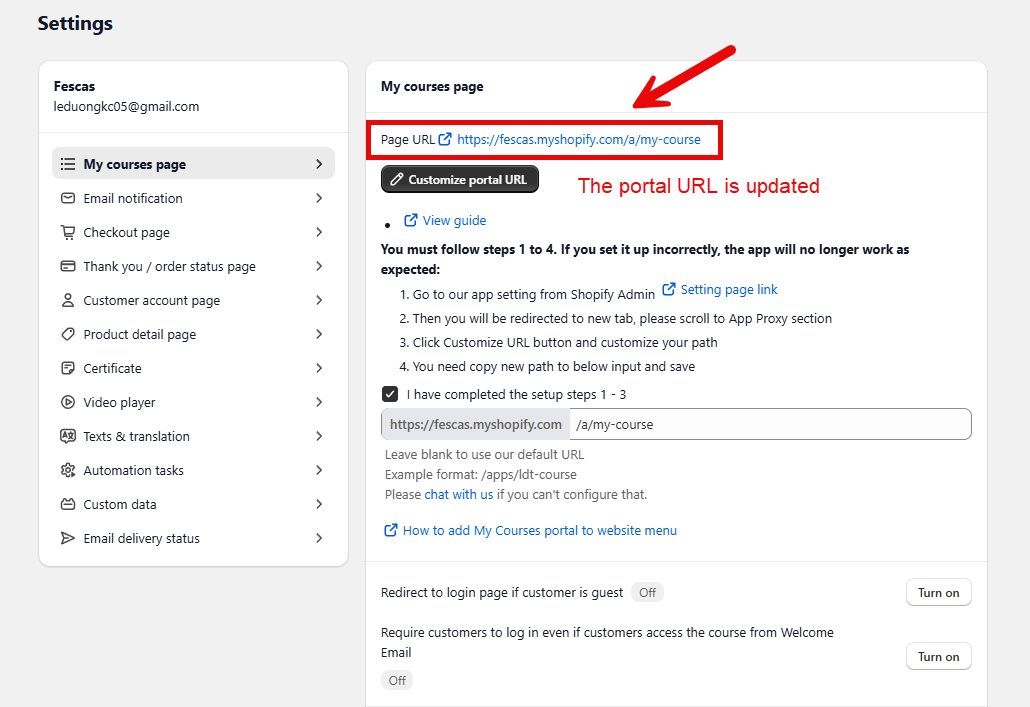
Return to the app's **My courses page** settings, paste the new path into the field, tick **I have completed the setup steps 1-3**, and click **Save**.
### Result
The portal opens at the new path on your store domain. Any existing menu link, customer-account block or shared link that still uses the old path must be updated to the new one.
### Troubleshooting
* **The new URL returns 404.** The path in Shopify and the path saved in the app must match exactly; check both and save again.
* **The old URL still works but the new one does not.** Shopify may not have applied the proxy change yet; wait a moment and reload.
* **The store menu link is broken.** Update the menu item to the new path — the old path is no longer the portal.
* **The path is rejected.** Use a path that is not already used by another app proxy or page; avoid spaces and special characters.
* **I changed it back.** Repeat the four steps with the original path and save in both Shopify and the app.
### Related pages
* [How To Add A Course Link To Your Store Menu](https://helpdesk.ldtsoft.work/ldt-online-course/storefront-and-portal/how-to-add-a-course-link-to-your-store-menu.md)
* [How To Add the Courses Portal to your Customer Account Page](https://helpdesk.ldtsoft.work/ldt-online-course/storefront-and-portal/how-to-add-the-courses-portal-to-your-customer-account-page.md)
* [How to embed the course portal in a page](https://helpdesk.ldtsoft.work/ldt-online-course/storefront-and-portal/how-to-embed-the-course-portal.md)
* [How to Remove "Powered by LDT Team" Branding](https://helpdesk.ldtsoft.work/ldt-online-course/storefront-and-portal/how-to-remove-powered-by-ldt-team-branding.md)